SpeedClock offers three different means of measuring speed, all based on motion detection.
Speed M is straightforward to use and will provide satisfactory measurements in most cases.
Speed V is based on video recording and functions as a complement to Speed M in situations where the latter is not fast enough, e.g. for small, fast objects such as balls (a tennis serve, baseball pitch etc). However, Speed V has longer processing time and requires more manual adjustment than Speed M.
Speed R enables use of two synchronized iPhone/iPad devices to measure speed with high accuracy.
Speed M(otion)
To measure the speed of a car passing outside your house, you first need to set the distance to the road in Set Up. Hold the iPhone still, parallel to the road, press Start, and let the car drive over the screen. The speed is displayed automatically. Alternatively, you can start the measurement and set the distance afterwards by going into Set Up.
The distance can be determined by using a tape ruler or estimated with the distance tools provided in SpeedClock. You can also measure the size of a part of the object itself. This is done in Set Up. Select Object Size, enter a known size (e.g. the height or the wheelbase of a car), and adjust the lines to enclose the measured area. Go back and read the speed.
SpeedClock uses variations in the image to detect motion, and the sensitivity slider in Set Up controls the amount of motion required to activate the timer. The frame rate also affects the sensitivity (lower makes it more sensitive). The detection zone blinks in yellow when a motion is detected. Use this when you set the sensitivity. More about sensitivity and accuracy in the Q&A section.
By enabling Autoreset in Set Up, the instrument will reset automatically 2 s after a speed measurement. Along with the snapshot function, which saves a screenshot to the picture folder, this can be used as automatic speed registration.
In the distance field in Set Up, you can enter two values separated with a ';'. The first value then refers to objects approaching from the left and the second for objects coming from the right. This can be useful e.g. when measuring the speed of cars driving in different lanes.
You can also start the measurement from an Apple Watch and get the result on the watch display. Just install SpeedClock from the Watch app on the iPhone and open SpeedClock on the watch while you are in Speed M on the iPhone
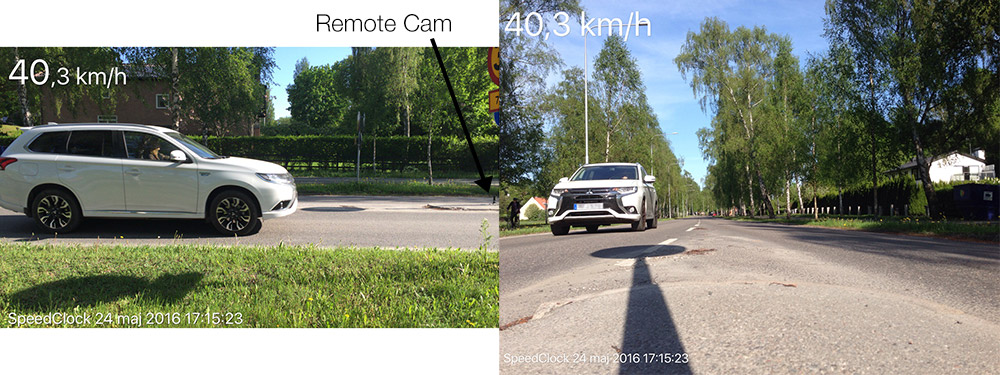
Remote Cam This feature allows you to use a second iPhone/iPad to automatically take a photo from another view (e.g the front of a car with the register plate visible) when using Speed M. Open Remote Cam from the main menu on the device you want to use as the extra camera. On the measuring device go to Speed M and Set Up. Scroll down to the bottom and you will find a Remote Cam switch. Turn that on and go back. You will get some information on both devices when they are connected. Place the camera device so it "sees" the approaching objects and start measuring.
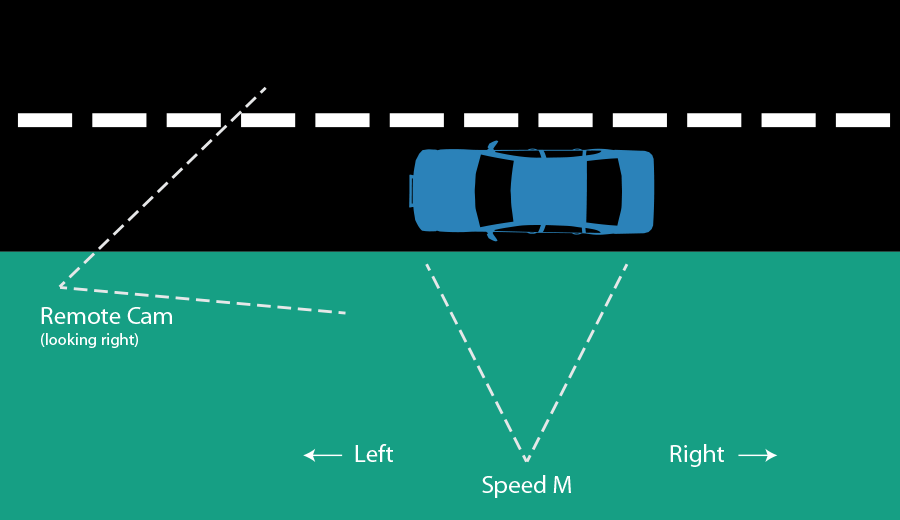
Remote Cam will take high resolution pictures of the front of cars coming from one direction and the back of those coming from the other. It is therefore important that you set the Looking Left/Right correctly. Left and right refers to the left and right of the measuring device. "Looking Left" means that the pictures will be taken when the object is at left side in Speed M, Looking Right takes pictures at the right side. The Remote Cam will save images for all measurements, unless you set a speed limit in Speed M. If you have problems with the connection and want to start all over, go to the main menu and back on the Remote Cam and turn the switch off and on again in Speed M. When running outdoors without a Wifi network, the range is limited, but 30 m is usually possible. For more advice about connecting see Speed R below.
Speed V(ideo)
A measurement includes the following four steps:
- Start the video recording by tapping the button. Hold still! Let the object pass. Stop the recording.
- Use the slider and the buttons to scroll through the video to the frame where the object just has entered the screen. Drag the cross hair so it is roughly over the middle of the object.Tap Set In Point.
- Scroll to the frame where the object is about to leave the screen and place the cross hair again. Tap Set Out Point.
- SpeedClock will track the object and calculate the speed. Go to Set up to enter the distance for a correct result.
The speed calculation assumes that the object travels parallel to the iPhone/iPad. A side motion will manifest itself in a 'Speed change' and a 'Size change' on the results page. The speed change is a combination of actual speed changes and side motion. The size change can be affected variation in the background as well. But together they can give an indication. A moderate (<15 degrees) side motion has limited affect on the accuracy, but the acceleration value requires that there is no side motion.
If the tracking fails SpeedClock will use the position of the cross hair at the in- and out points to calculate the speed. You can try to change the "Threshold" or the "Skip frames" to improve the tracking. If the app still fails you can choose to use the speed calculated without tracking, just remember that in this case it is important to place the cross hairs exactly. You can also disable the tracking all together to avoid error messages in difficult cases.
Speed R(emote)
Speed R has two modes: Start Sender that records the start time and activates Speed Meter on another device. Communication between the devices can occur via Bluetooth or WiFi networks.
Synchronization
Before using the Start Sender, the devices must be synchronized to establish the difference between the internal clocks and to set up the communication:
- Open Speed R from the main menu on both devices.
- In Set Up choose the Start Sender mode on the device the object will reach first.
- On the other device, choose Speed Meter. Then tap the Synchronize button when the text says "Start sender found". Synchronization usually takes 10-15 s.
- Set the distance between the devices, close the Set Up and you are ready to go.
Start Sender will continuously update the clocks so there is no need for resyncing, unless the communication is lost.
Motion detection
The clock is started and stopped when an object moves into the red rectangle in the camera view. Use the sensitivity slider on the right to indicate how much motion is required to trigger a start/stop. The rectangle flashes when motion is detected. When you are ready to go tap the activate button on either device.
Network
Wifi must be turned on on both devices. SpeedClock can communicate directly between the devices over WiFi, or use an external WiFi network if available. If there is no external Wifi network it is beneficial to also have Bluetooth activated. It will automatically pick the best network.
The range of a device to device network is limited and to extend the range you may need an external WiFi network. Since it doesn't require an Internet connection it essentially only a question of placing a router where both devices can access it. Tips about setting up a battery powered router can be found here.
The possible range varies with hardware, free line of sight etc. But the developer has managed to run a direct connection between an iPhone 6 and an iPad Air at a 40 m distance and at 200 m with a small router in between.
Reconnecting
If the connection fails, for example if you move outside the range, you have to reestablish the connection and synchronization:
- Bring the devices within range of each other.
- In Start Sender tap the Reconnect button that has appeared in the bottom right corner
- In Speed Meter go to back to Set Up and tap the Synchronize button when the text says "Start sender found".